Understanding Embroidery Stitch Types
Most commercial embroidery files rely on three core stitch families: fill (tatami) for coverage, satin for narrow columns, and running stitch for outlines and detail. Choosing well is less about guesswork and more about shape width, fabric behavior, underlay, and the finish you want.
Fast rule
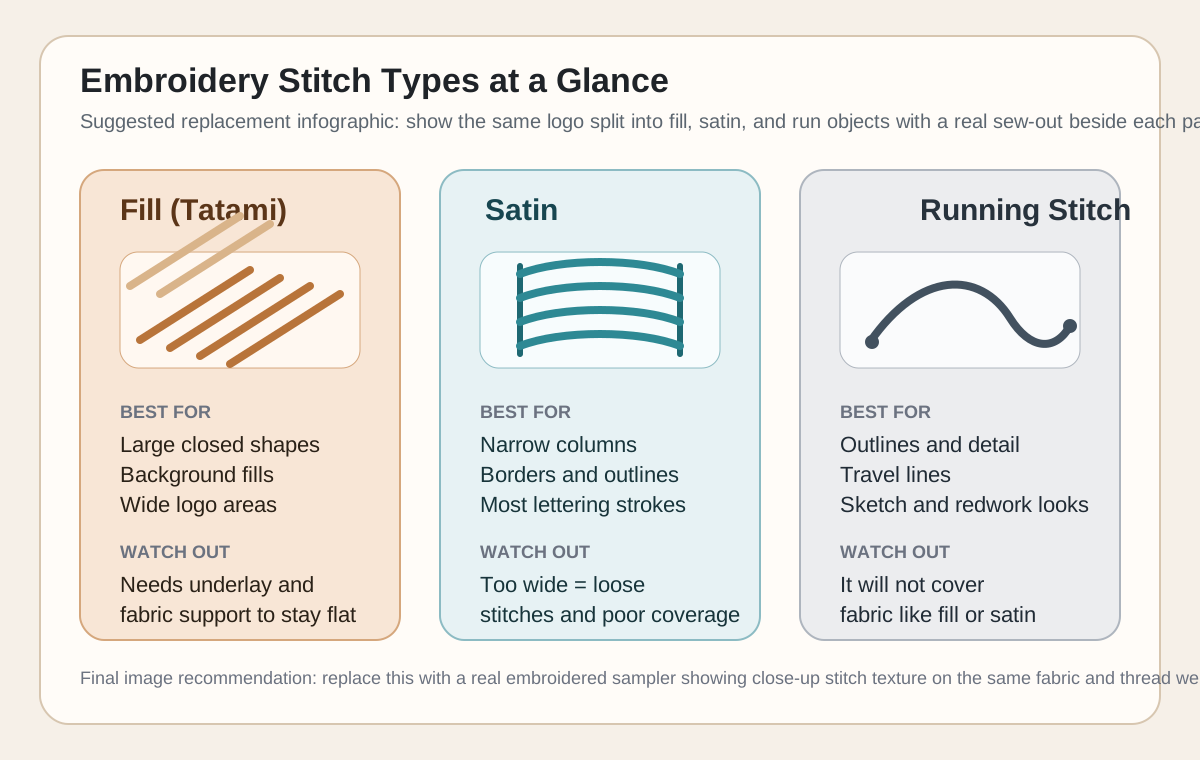
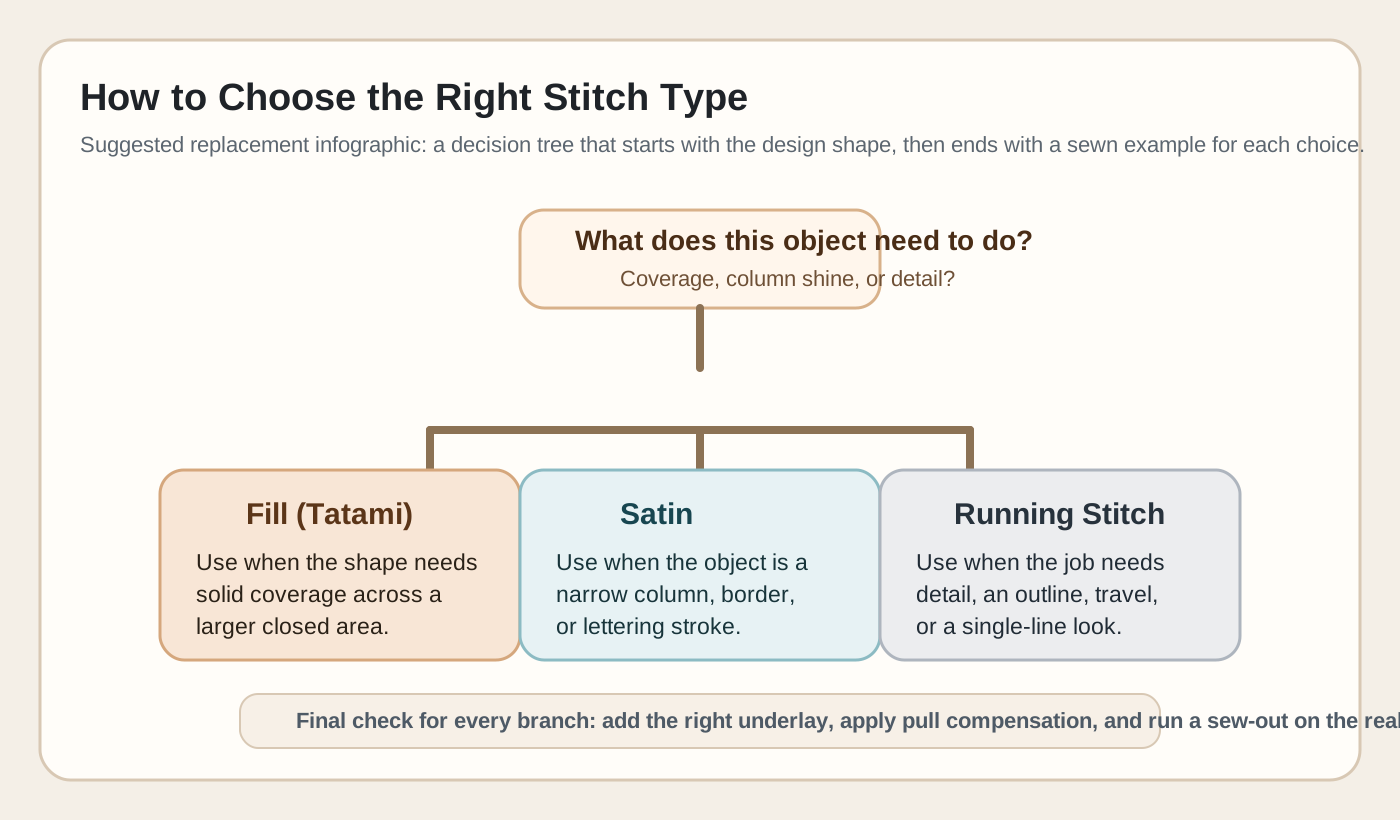
Large closed areas usually want fill. Narrow columns and most lettering want satin. Outlines, travel lines, and fine detail want running stitch. Then test it on the actual fabric.
Fill Stitches (Tatami): Best for Broad Coverage
Tatami, also called fill stitch, is the standard choice for larger closed shapes. Wilcom describes tatami as rows of run stitches used to fill large shapes, with offsets that help prevent obvious split lines.
Use it when you need solid coverage across badge backgrounds, block shapes, wide lettering interiors, or any area that is too broad for stable satin.
Fill stitch is not only about density. Stitch angle, stitch spacing, and how the rows are offset all affect texture, coverage, and how clearly neighboring sections separate from each other.
Large filled areas usually need suitable underlay and fabric support. Hatch notes that larger areas and stretchy fabrics generally need more underlay than small objects on firm materials.
Satin Stitches: Narrow Columns, Borders, and Most Lettering
Satin stitch is best for narrow columns and borders where each stitch spans the width of the shape. That makes it the default choice for most lettering strokes, clean borders, and slim logo elements.
Because the surface is made from long, nearly parallel stitches, satin creates the smooth, glossy look people associate with premium embroidery.
Width is the main limit. Wilcom warns that when a satin shape becomes too wide, the stitches can loosen or fail to cover the fabric properly. In those cases, a digitizer usually switches to fill stitch or uses auto-splits to control long stitches.
Satin also shows pull more clearly than other stitch types. Good results depend on the right underlay, spacing, and pull compensation for the fabric being used.
Common mistake
If a satin object starts acting like a wide shape instead of a narrow column, stop forcing it. Convert it to fill or split the satin before you try to rescue it with extra density.
Running Stitches: Outlines, Detail, Travel, and Light Decorative Work
Running stitch places a single line of stitches along a path. It is the cleanest option for outlines, centerlines, sketch effects, travel paths, and small details that do not need full coverage.
Triple run repeats the same path for more visibility and durability. It is useful when a single run looks too light but satin would add unnecessary bulk.
Running stitch will not hide the fabric underneath, so it is not a substitute for fill when you need a solid area of color.
Its light stitch count makes it useful on delicate materials and detail work, but stitch length still needs to be controlled so curves, corners, and fine points sew cleanly.
Quick Selection Rules
- Choose fill (tatami) for broad closed shapes that need solid coverage.
- Choose satin for narrow columns, borders, and most readable lettering.
- Choose run or triple run for outlines, detail, travel lines, and single-line artwork.
- If a satin area becomes too wide, convert it to fill or split it.
- If a detail is too small to hold a clean satin column, simplify it or use run stitching instead.
- Judge stitch type together with underlay, pull compensation, backing, and the target fabric.
What Actually Controls Quality
Stitch type is only the first decision. Clean sew-outs usually depend on four settings working together: spacing, underlay, stitch angle, and pull compensation.
Wilcom's documentation treats suitable underlay and pull compensation as core quality controls because embroidery stitches pull fabric inward where the needle penetrates. Without the right support, gaps, puckering, and misregistration become more likely.
Hatch also notes that underlay requirements change with fabric and object size. Knits, pique, and other unstable materials usually need more support than firm fabrics.
This is why a design that looks correct on screen can still fail in production. The real test is a sew-out on the actual garment or a close fabric match.
Small text reality check
Do not trust blanket size rules for lettering. Hatch's lettering guidance says text under 5 mm should not use underlay, 6-10 mm can use center-run underlay, and larger lettering can use edge-run underlay, but readability still depends on the font, thread, fabric, and machine setup. Always test small text at the final size.
Why do satin stitches look rough, loose, or rope-like?
The most common cause is using satin on a column that is too wide. Wilcom warns that wide satin can sew loose or fail to cover properly. After width, check spacing or density, underlay, pull compensation, and machine tension on a test sew-out. Satin problems are usually a combination issue, not a single setting issue.
Can running stitch be used for lettering?
Yes, if the style is intentionally outline, redwork, or single-line. It is not the right choice when you want solid, commercial-looking lettering. For readable small text, use a font digitized for small sizes and test it on the actual fabric rather than scaling any font down blindly.
Is fill stitch always better for durability?
No. More stitches do not automatically mean a better result. Dense fills add coverage, but they also add bulk, sewing time, and distortion risk. For outlines and fine detail, run or satin often sews cleaner and lasts just as well because the stitch type matches the shape.
What should I check before approving a digitized file?
Confirm that large shapes use fill, narrow columns use satin, and fine details use run or triple run. Then check that underlay and pull compensation fit the fabric, and do a test sew-out to see whether edges stay clean, gaps stay closed, and text remains readable.
Need help with the next step?
Use Pixel2Lines to turn the workflow from this guide into a clean, production-ready result.
Open Pixel2Lines
Comments
Loading comments...