Masukan SVG yang bersih
Paling sesuai untuk karya seni berbasis jalur, logo, label, diagram, dan Vektorisasi Grafik Garis. Teks langsung, gambar raster, mask, filter, gradien, dan efek kompleks harus diratakan sebelum mengunggah.
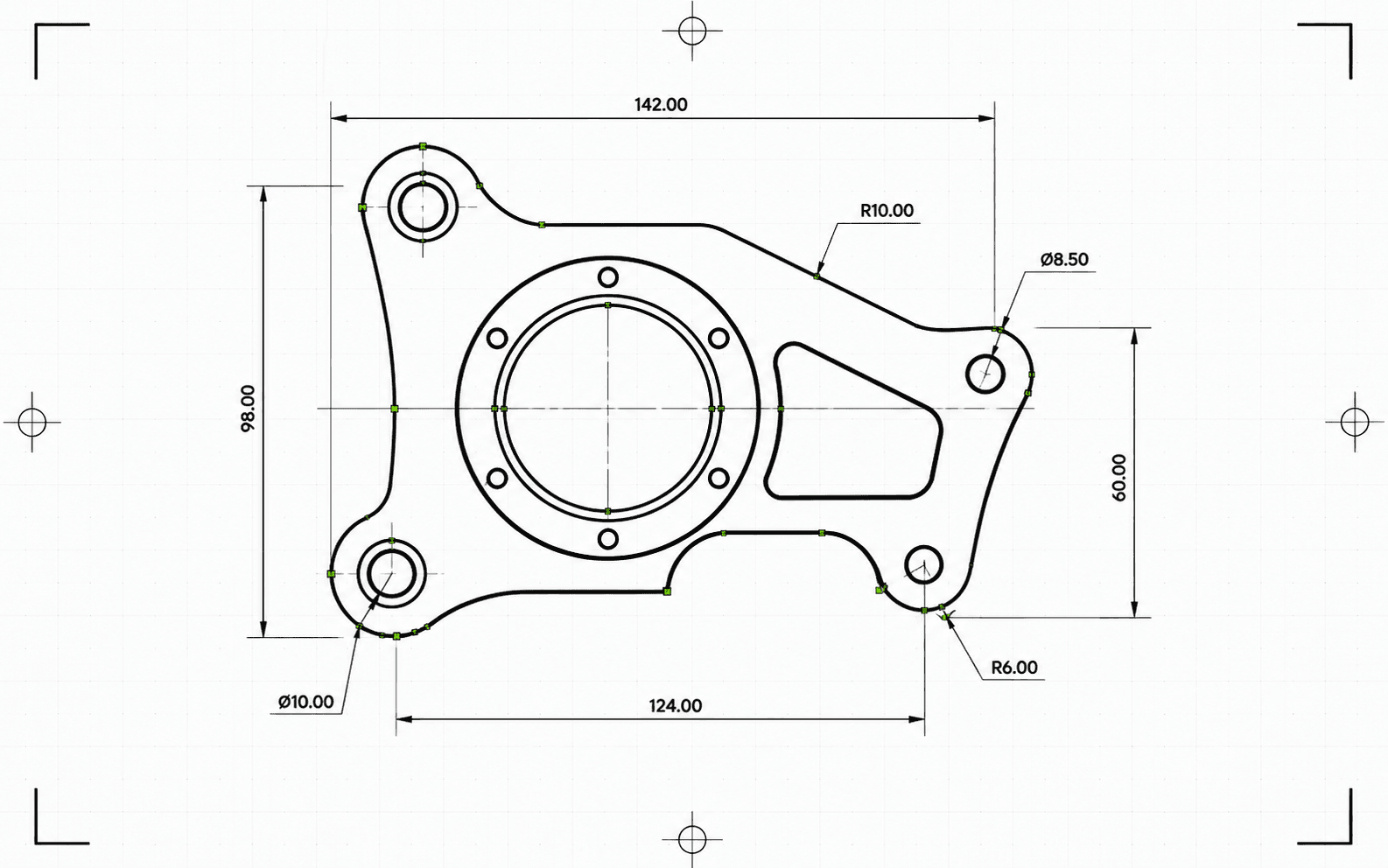
Pixel2Lines mengonversi berkas SVG berbasis jalur menjadi DXF R2010 dalam satuan milimeter. Kurva Bezier diuji terhadap toleransi lingkaran dan ditulis sebagai entitas ARC sejati ketika hasil pencocokannya lolos — alih-alih diratakan menjadi segmen polyline. Warna SVG dipetakan ke layer DXF: jalur merah ke Cut, biru ke Score, hijau ke Engrave. Jalur hitam dan akromatik secara default masuk ke Cut. ID grup semantik (CUT_HOLES, CUT_OUTER, DETAIL) dipertahankan sebagai nama layer DXF yang persis. Geometri dibersihkan sebelum ditulis: segmen pendek, entitas duplikat, dan jalur terbuka berjarak nyaris-rapat diselesaikan secara otomatis.
Sebelum konversi, pipeline memvalidasi SVG: teks langsung memblokir pekerjaan dengan pesan kesalahan spesifik, dan SVG tanpa dimensi fisik eksplisit diblokir alih-alih diskalakan secara diam-diam. Gradien, mask, filter, dan clip path dilewati dengan peringatan — semuanya harus diratakan terlebih dahulu di editor SVG Anda. Anda menerima berkas DXF dan laporan JSON berisi status, pemblokir, peringatan, dimensi yang dikonfirmasi, jumlah entitas per layer, tindakan pembersihan yang dilakukan, ukuran artefak, dan checksum.
Konversi berkas SVG berbasis jalur menjadi DXF R2010 dalam satuan milimeter dengan skala terverifikasi, geometri akurat berbasis arc, dan laporan JSON untuk setiap konversi.
Paling sesuai untuk karya seni berbasis jalur, logo, label, diagram, dan Vektorisasi Grafik Garis. Teks langsung, gambar raster, mask, filter, gradien, dan efek kompleks harus diratakan sebelum mengunggah.
Dimensi fisik diperlakukan sebagai persyaratan. SVG dengan lebar dan tinggi eksplisit dalam mm, cm, atau inci dikonversi pada ukuran yang dideklarasikan. SVG hanya-ViewBox tanpa satuan fisik diblokir — DXF tidak dihasilkan pada skala yang belum terverifikasi. DXF keluaran mendeklarasikan milimeter dalam header-nya ($INSUNITS=4).
Kurva Bezier dicocokkan terhadap lingkaran menggunakan sampel 5 titik pada toleransi 0.01 mm. Kurva yang lolos ditulis sebagai entitas ARC; kurva yang tidak lolos diaproksimasi sebagai segmen garis pada toleransi yang sama. Setelah ditulis, DXF divalidasi: header satuan, ekstensi terbatas, jumlah entitas, dan validitas koordinat. Keluaran berformat R2010, dapat dibaca oleh AutoCAD, LightBurn, RDWorks, Fusion 360, dan perangkat lunak CAM standar.
Unduh berkas DXF yang tervalidasi dan laporan JSON berisi status, peringatan, pemblokir, dimensi, penugasan layer, jumlah entitas, catatan pembersihan, ukuran byte, dan checksum. Entitas dalam DXF diurutkan untuk pemotongan: bentuk interior sebelum outline luar, sehingga potongan dalam selesai sebelum material di sekitarnya terlepas.
Berfokus pada konversi geometri SVG-ke-DXF 2D yang tepercaya untuk CAD, perangkat lunak laser, dan serah terima CAM. Gambar raster, teks langsung, mask, filter, gradien, dan efek visual kompleks harus diratakan terlebih dahulu. Pembuatan jalur pahat CNC dan operasi CAM router tidak termasuk.
Keluaran DXF R2010 dalam satuan milimeter untuk impor CAD, perangkat lunak laser, serah terima CAM, dan pengarsipan vektor.
Laporan praterbang dan pengiriman terstruktur berisi status, pemblokir, peringatan, dimensi, layer, jumlah entitas, tindakan pembersihan, dan checksum.
Gunakan SVG berbasis jalur dengan geometri vektor yang sebenarnya. Konversi teks langsung menjadi outline dan ratakan gambar tersemat, mask, filter, clip path, gradien, serta efek visual lainnya sebelum mengunggah.
Konverter memeriksa fitur SVG yang tidak didukung, geometri transparan atau tak terlihat, dan dimensi fisik yang hilang. Pekerjaan yang akan menghasilkan keluaran tidak andal diblokir dengan pesan kesalahan spesifik sebelum DXF ditulis.
Unduh berkas DXF R2010 yang tervalidasi dan laporan JSON berisi checksum, ukuran byte, dan jumlah entitas. Peringatan dan pemblokir disertakan dalam laporan ketika masalah terdeteksi selama konversi.
Siapkan logo, tata letak, label, gambar, dan diagram SVG untuk aplikasi CAD yang memerlukan masukan DXF.
Konversi jalur vektor yang bersih menjadi DXF dengan layer Cut, Score, Engrave, atau layer produksi semantik bila didukung oleh SVG.
Buat berkas pertukaran DXF untuk pengaturan CAD/CAM di tahap berikutnya. Toolpath, kedalaman Z, tab, pocketing, dan kompensasi cutter tetap dikerjakan di perangkat lunak CAM.
Simpan karya seni klien dan gambar produksi dalam format vektor ramah CAD dengan asal yang didukung laporan.
Manfaatkan warna dan semantik grup yang didukung untuk mengatur layer DXF seperti Cut, Score, Engrave, CUT_HOLES, CUT_OUTER, dan DETAIL.
Jalankan konversi uji coba untuk mendeteksi fitur yang tidak didukung, dimensi ambigu, dan masalah geometri sebelum memulai konversi penuh.
Berkas SVG berbasis jalur yang bersih paling cocok. Ratakan gambar tersemat, teks langsung, mask, filter, gradien, clip path, CSS eksternal, dan efek yang tidak didukung sebelum mengunggah.
Keluaran menggunakan entitas LINE, ARC, CIRCLE, dan LWPOLYLINE — tipe yang didukung oleh AutoCAD, LightBurn, RDWorks, Fusion 360, dan sebagian besar pengendali laser. Tidak ada entitas SPLINE yang ditulis, sehingga kompatibilitas dengan pengendali mesin lama tetap terjaga. Kurva Bezier yang cocok dengan bentuk lingkaran dalam toleransi 0.01 mm ditulis sebagai entitas ARC; selainnya menjadi segmen garis pada toleransi yang sama. Lingkaran utuh dideteksi dan ditulis sebagai entitas CIRCLE.
SVG dengan lebar dan tinggi eksplisit dalam mm, cm, atau inci dikonversi pada dimensi yang dideklarasikan. SVG berbasis piksel menggunakan 96 DPI secara default. SVG hanya-ViewBox tanpa satuan fisik eksplisit diblokir — DXF tidak dikirim pada skala yang belum terverifikasi.
Anda menerima berkas DXF dan laporan konversi JSON terstruktur berisi status, pemblokir, peringatan, dimensi, jumlah entitas dan layer, detail validasi, ukuran artefak, dan checksum. Toolpath router CNC, kedalaman Z, tab, pocket, lead-in, feed, speed, dan kompensasi cutter tetap dikerjakan di perangkat lunak CAM.
