Bitmap (Raster) vs Vector Laser Engraving
Laser engraving uses two fundamental modes—raster for images and fills, vector for lines and outlines. Each mode optimizes for different content types with distinct speed and quality characteristics.
How Each Mode Works
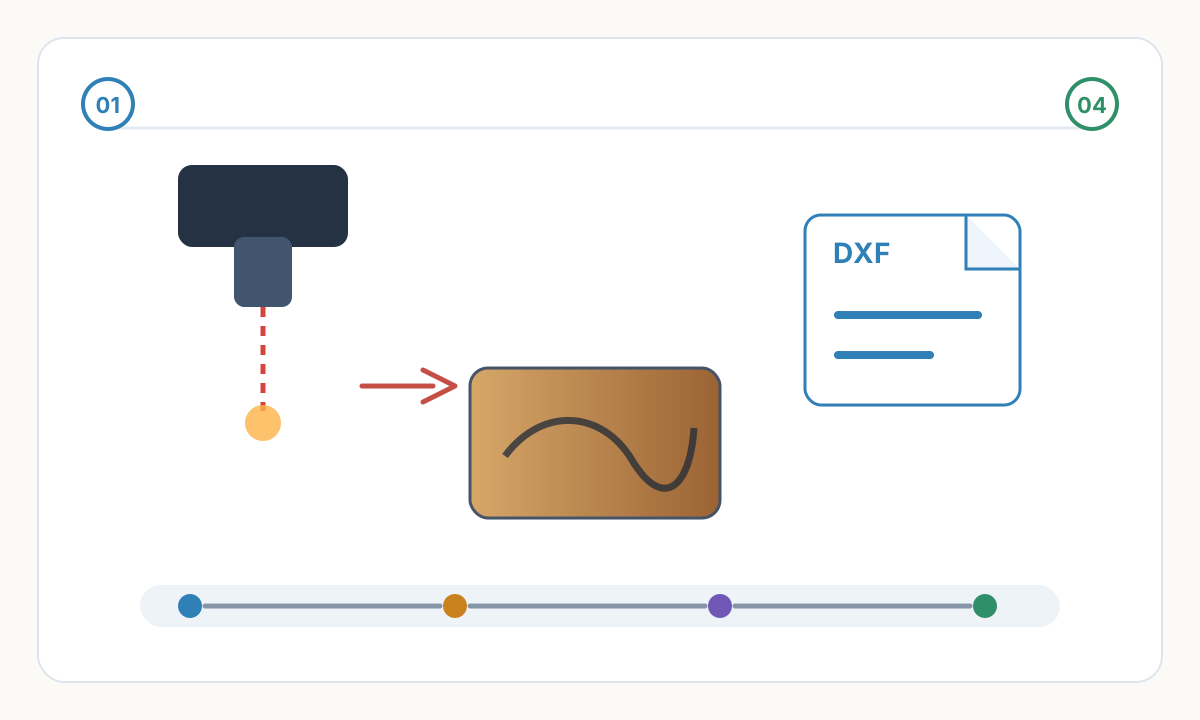
Raster engraving: laser head scans back and forth like inkjet printer, firing pulse-by-pulse to create image. Each horizontal line scanned completely, then advances vertically for next line. Used for photos, filled areas, gradients, text fills. Quality depends on DPI—higher DPI = more scan lines = finer detail but longer time.
Vector engraving (vector marking/scoring): laser follows paths like pen plotter, tracing outline shapes. Moves only along defined lines, not entire area. Used for line-graphic SVG, outlines, unfilled text, technical drawings. Speed depends on path length, not filled area. Complex paths with many direction changes slower than simple shapes.
Mode selection automatic in most software: bitmap/raster content (photos, filled shapes) processed as raster engraving. Line/stroke content (unfilled outlines, stroke drawings) processed as vector. Mixed files use both modes—vector for outlines, raster for fills.
Fundamental difference: raster creates tone through dot density variation (halftone/dithering). Vector creates lines of uniform depth. Combining both modes in single project produces dimensionality—vector outlines sharply define raster-filled areas.

Raster Engraving Characteristics
Produces photographic effects: smooth tonal gradations, subtle shading, continuous-tone appearance from distance. Essential for portraits, landscapes, product photos. Vector cannot reproduce these effects—only solid lines.
Speed inversely proportional to area: small 2×2 inch photo faster than large 8×8 inch photo at same DPI. Laser scans every horizontal line in bounding box even if mostly empty space. Crop tightly to minimize scan area and reduce time.
DPI determines quality and time: 300 DPI standard quality, 400-600 DPI high quality (2-4× longer), 200 DPI acceptable for coarse materials or large-format. Each DPI increase adds scan lines proportionally—400 DPI takes 1.78× longer than 300 DPI (400÷300 = 1.33, squared = 1.78 because both horizontal and vertical resolution increase).
Directional effects possible: scanning horizontally vs vertically produces slightly different appearance due to grain interaction. Some materials show visible scan lines—rotate 45° to minimize. Bi-directional scanning (scans both directions) faster but may show alignment shifts on very detailed work.
Vector Engraving Characteristics
Produces clean outlines and line work: technical drawings, logos with outlines, decorative borders, intricate patterns. Lines uniform width and depth throughout path. Perfect for architectural plans, circuit board layouts, coloring book style graphics.
Speed depends on path complexity: simple circle engraves quickly. Complex Celtic knot with hundreds of direction changes much slower—laser must decelerate and accelerate at each corner. Optimize paths: reduce anchor points, smooth curves, eliminate redundant geometry.
No tone variation within vector mode: line either present or absent. Can't create gray—only solid marks. For filled appearance, use raster mode or create crosshatch pattern (still vector but appears filled). Some advanced systems support power ramping along vector paths for variable depth effects.
Precision advantage: vector maintains exact dimensions regardless of scaling. Raster quality degrades when scaled beyond original DPI. Critical for parts requiring dimensional accuracy—mounting holes, registration marks, assembly jigs. Vector preserves these perfectly.
Choosing the Right Mode
- 1
Evaluate Content Type
Photos, filled graphics, gradients → raster mode. Stroke drawings, unfilled outlines, technical drawings → vector mode. Mixed content (outlined shapes with photo fills) → combined raster + vector. Most laser software automatically assigns mode based on file content type.
- 2
Consider Production Time
Vector faster for: simple shapes, small elements, line-heavy designs. Raster faster for: small filled areas at low DPI, content with many tiny vector paths that would require constant direction changes. Test both on complex designs—sometimes vector outline + raster fill faster than pure raster.
- 3
Quality Requirements
Raster for photographic quality—tonal gradations and realistic rendering. Vector for sharp, clean edges—technical precision and uniform line weight. Combined for maximum quality: raster fills provide tone, vector outlines provide crisp definition.
- 4
Material Considerations
Coarse materials (cork, rough wood, stone) benefit from raster—grain texture overwhelms vector line precision anyway. Smooth materials (acrylic, polished metal, leather) show vector quality—clean lines stand out. Material reflectivity affects raster (anodized aluminum reflects, creating uneven raster but clean vector).
Combined Mode Applications
Photo with border: raster engrave photo, vector engrave decorative border outline. Border takes seconds, photo takes minutes. Total time barely longer than photo alone. Border adds polish and defines edge clearly.
Logo with outline and fill: vector engrave outline for crisp edge definition, raster fill interior for solid appearance or gradient effects. Common for corporate logos—clean outlines communicate professionalism, filled areas provide visual weight.
Architectural rendering: vector lines for walls, windows, structural elements (maintains precision), raster shading for materials, shadows, context (adds realism). Combines technical accuracy with aesthetic presentation.
Product mockups: vector engrave product outline and features (dimensions critical), raster engrave branding, textures, images on product (visual appeal). Balances functional precision with marketing aesthetics.
Can I convert raster to vector or vice versa?
Raster to vector (tracing): software like Inkscape, Adobe Illustrator converts pixel edges to vector paths. Works well for simple high-contrast graphics, poorly for photos (creates thousands of tiny paths, huge file, slow engraving). Photos should stay raster. Vector to raster: always possible, just 'rasterize' or export as bitmap at desired DPI. Common when vector too complex (thousands of tiny paths) to engrave efficiently—rasterizing may be faster.
Why does my vector engraving look different thickness in different areas?
Vector marks uniform depth but apparent thickness varies based on: grain direction (cross-grain appears thicker than with-grain), material density variation (soft areas burn wider), laser focus height (out-of-focus widens mark), speed variation at corners (laser slows = deeper burn = wider appearance). Ensure material flat, focus correct, and consider slightly faster speeds if burning too wide. Some variation normal in natural materials.
Which mode is faster for filling large areas?
Depends on DPI and fill strategy. Raster at 150-200 DPI may be faster than vector crosshatch for large areas. Vector fills using widely-spaced parallel lines (3-5mm spacing) faster than raster. For solid fills, raster at moderate DPI (200-250) usually faster. Test both—surprising results common. Dense vector patterns (many lines close together) almost always slower than equivalent raster.
Verification checklist before production
- Confirm final size, units, and orientation in the destination software
- Inspect the file for hidden, duplicate, or irrelevant geometry
- Run a small material or sew-out test before full production
- Save the approved settings, source file, and exported production file together
Prepare cleaner production files with Pixel2Lines
Use Pixel2Lines when you need artwork converted into cleaner SVG, DXF, embroidery, or machine-ready outputs before production.
Start with Pixel2Lines
Comments
Loading comments...