How to Use a Laser Engraving Machine: Complete Beginner's Guide
Learn the fundamentals that separate clean, repeatable results from wasted material: safety, file prep, settings, and a systematic workflow that works across CO2, fiber, and diode lasers.
How laser engraving works (in plain terms)
Laser engraving translates digital files into permanent marks by removing material through burning, melting, or vaporization.
Your file defines either paths (vector) or pixels (raster). Your settings define how much energy the laser delivers at each point.
Clean outcomes come from controlling three things: safe operation, clean files, and repeatable settings validated by tests.
Safety first: non-negotiable rules
Never operate a laser engraver without proper ventilation that exhausts outside.
Never leave the machine unattended while running—lasers can start fires within seconds.
Use appropriate eye protection for your laser type (especially open-frame diode and fiber systems).
Never engrave PVC/vinyl or unknown plastics—chlorine-containing materials release corrosive and hazardous gases.
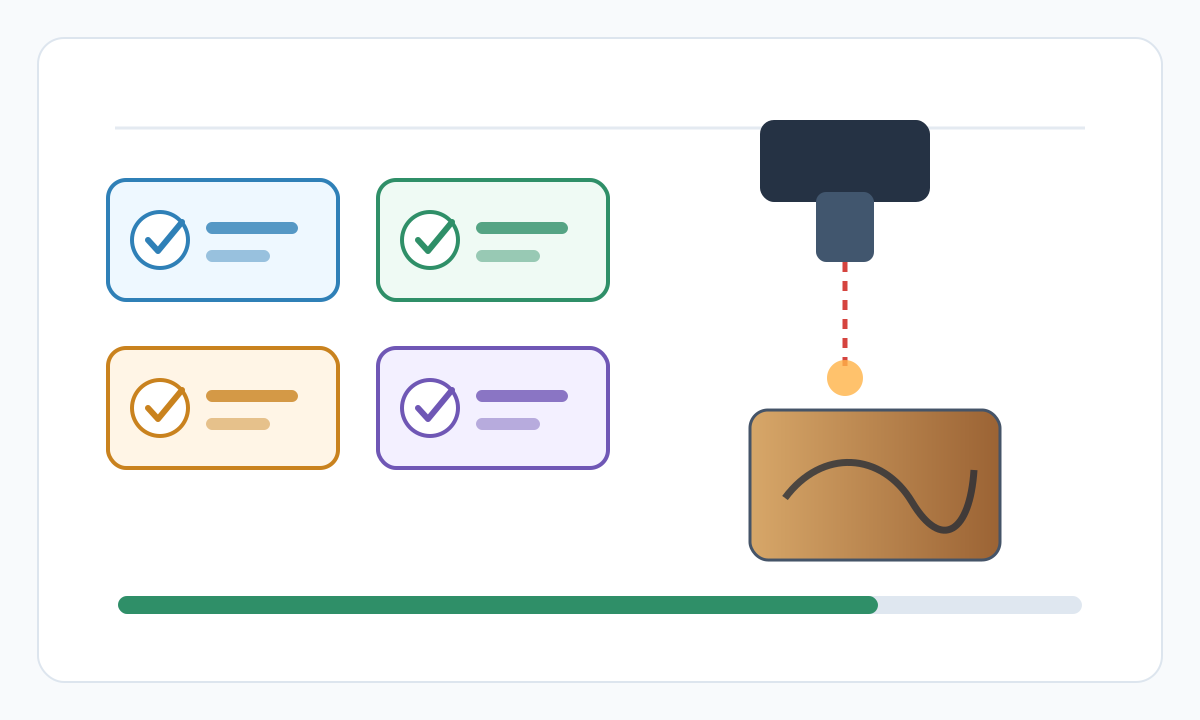
Pre-flight safety checklist
- Exhaust/ducting connected and pulling air outside
- Fire extinguisher within reach
- Material is known and laser-safe (no PVC/vinyl/chlorine)
- Lens area is clean and air assist (if available) is working
- Stay present for the full job
Understanding your machine's basics
Laser type determines what you can engrave: CO2 for organics/acrylic, fiber for metals, diode for lighter-duty organics.
Wavelength matters as much as wattage: materials absorb different wavelengths differently.
Work area and focal length define project size and what thicknesses can stay in focus.
Choosing and preparing materials
Flatness matters: warps and curves create focus variation and uneven engraving depth.
Clean surfaces engrave better—wipe dust and oils with isopropyl alcohol.
Masking tape can prevent scorch marks and keep edges clean on wood, acrylic, and painted surfaces.
Material density, thickness, and batch variation change results—record successful settings per material.
File preparation: the foundation of good results
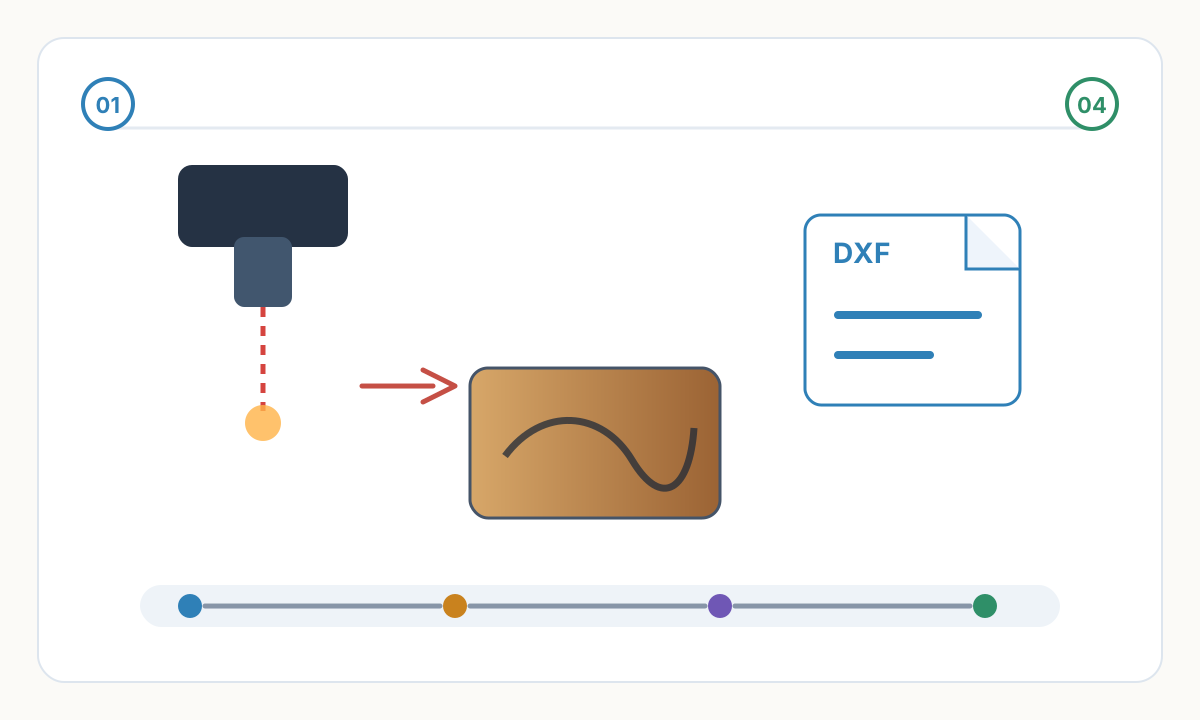
Vectors (SVG/DXF/AI) define paths the laser follows; rasters (PNG/JPG) define pixel-based power variation.
Use rasters for photos and tonal work. Use vectors for clean outlines, text, and technical linework.
Photo-to-vector conversion is a major time sink—auto-trace often needs cleanup (broken lines, stray points, excessive nodes).
Production workflows often use specialized conversion tools to get consistent, clean SVGs quickly.
- Clean vectors: closed paths, minimal anchor points, no duplicate/overlapping geometry
- Rasters: correct resolution at final size, controlled contrast, 8-bit grayscale when appropriate
Power and speed settings: the critical balance
Power controls how much energy the laser delivers; speed controls how long it dwells on each area.
High power + slow speed can char and roughen edges; the same depth at faster speed often looks cleaner.
Start conservative, then increase gradually. Use test matrices to map power vs speed for each material.
Run a material test matrix before trusting any setting
Online settings are only starting points. Tube condition, diode optics, air assist, material batch, moisture, coating, lens cleanliness, and focus height all change the result. A small power-speed matrix on scrap material is the fastest way to find the usable window for your exact machine.
Record the result in plain language: material, thickness, supplier, masking, DPI, power, speed, passes, air assist, and cleanup notes. A reliable shop builds a settings library instead of guessing every job.
Common beginner mistakes
The most expensive beginner mistakes are preventable: engraving unknown plastic, trusting a file preview without checking scale, using cutting power for engraving, skipping focus, leaving the machine unattended, and running a full-size job before a test tile.
If a job fails, change one variable at a time. Adjust focus, then power, then speed, then file processing. Changing everything at once makes the next failure harder to diagnose.
Your first engraving jobs (repeatable workflow)
- 1
Focus before every job
Set the correct focal distance using your focus gauge or auto-focus system. Recheck when thickness changes.
- 2
Position artwork and preview paths
Confirm bed boundaries, orientation, and that the laser path makes sense (no wasted travel or out-of-bounds moves).
- 3
Run a small test first
A test tile or matrix on scrap is faster than redoing a full piece after a mistake.
- 4
Start and monitor the first seconds
Look for flames, heavy smoke, no marking, or unusual sounds. Pause immediately if something looks wrong.
- 5
Record settings that worked
Log material, thickness, DPI, power, speed, and any masking/finishing steps for future jobs.
Why is my engraving too light?
Increase power (often +10–20%) or reduce speed (often -20–30%). Recheck focus and ensure the material surface isn’t blocking absorption (coatings/film).
Why is my engraving charred or burning through?
Reduce power or increase speed. Confirm you’re not using cutting settings for engraving. Also verify material thickness and dryness.
Why are edges fuzzy or blurry?
Most commonly focus or dirty optics. Re-focus, clean lens/mirrors properly, and secure the material so it cannot shift. Also confirm file resolution is adequate.
Maintenance and workflow building
Keep optics clean (lens/mirrors), exhaust flowing, and belts properly tensioned to avoid alignment and power loss.
Document repeatable processes: material prep, known-good settings, post-cleanup, and QC checks.
Start simple, keep test records, and build a reference library for your most common materials.
Need clean files before you even touch machine settings?
Good results start with good geometry. Use an engraving-ready SVG workflow to reduce cleanup time and avoid messy toolpaths.
Photo to Line Graphic Vectorization
Comments
Loading comments...