Why Your Embroidery Machine Will Not Read a DST File
Most DST reading problems are caused by storage, naming, folder, or compatibility rules rather than the stitch file itself. Work through the simple checks first before recreating the design.
Start by separating file problems from USB problems
If the machine does not see any files on the USB drive, the problem is usually the drive format, folder location, or filename. If the machine sees other designs but rejects one DST file, the problem is more likely stitch data, hoop limits, file corruption, or a format mismatch.
Use a known-good sample design from the machine manufacturer as a control. If the sample appears and loads correctly, the USB drive and folder structure are probably fine. If the sample also fails, fix the drive setup before editing your DST file.
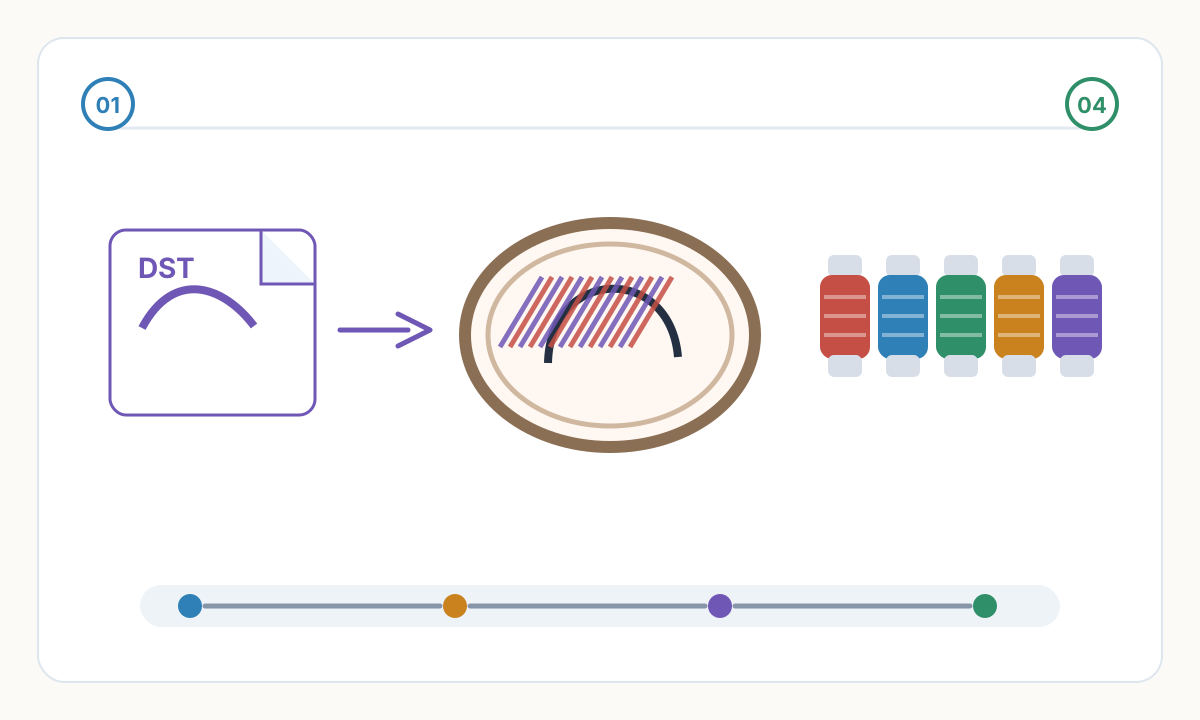

Common cause 1: USB formatting
Many embroidery machines expect FAT32 or MS-DOS (FAT) storage, especially older or single-needle home machines. New USB drives often ship as exFAT or NTFS, which a machine may ignore completely. Reformatting erases the drive, so back it up first.
Use a small, simple USB drive when possible. A 4GB, 8GB, 16GB, or 32GB drive formatted as FAT32 is often more reliable than a large modern drive filled with unrelated files.
Common cause 2: folder and filename rules
Some machines need designs in a specific folder such as EMBROIDERY, Designs, or a brand-specific directory. Others only read designs from the root of the USB drive. Check the manual and copy a known-good sample into the same location as your DST file.
Keep filenames simple: short Latin letters or numbers, no spaces, no symbols, and one extension only. A file named LOGO01.DST is more likely to work across machines than a long customer project name with punctuation or hidden extensions.
Quick isolation test
- 1
Test the USB drive
Format a small drive as FAT32, create only the required folder, and copy one known-good sample design plus your DST file.
- 2
Simplify the filename
Rename the file to LOGO01.DST or another short name with no spaces or punctuation. Make sure it is not accidentally named LOGO01.DST.DST.
- 3
Check design limits
Confirm the design fits the selected hoop and does not exceed machine stitch count, color change, or size limits.
- 4
Open the file in embroidery software
If software cannot open it, the file may be corrupt or not actually a DST. Export a fresh copy from the digitizing source.
- 5
Try the machine native format
If your machine prefers PES, JEF, EXP, VP3, or another native format, export that format from the same verified stitch design.
DST compatibility checklist
- USB drive formatted as FAT32 or MS-DOS (FAT)
- File placed in the exact folder required by the machine
- Filename short, simple, and ending in one .DST extension
- Design fits the active hoop size and machine limits
- DST opens correctly in embroidery software
- Known-good sample file loads from the same USB drive
Why does the machine show the USB drive but not my DST file?
The file may be in the wrong folder, use a filename the machine cannot read, exceed hoop limits, or be an invalid/corrupt DST. Compare it with a known-good sample file.
Can a DST file contain thread colors?
DST primarily stores stitch commands and color changes, not reliable thread brand colors. Keep a separate color sheet or use a machine format that preserves more color metadata when needed.
Should I convert DST to PES or another native format?
If your machine prefers a native format, yes. Convert from the original digitized design where possible, not from a corrupted or unverified DST.
Prepare cleaner production files with Pixel2Lines
Use Pixel2Lines when you need artwork converted into cleaner SVG, DXF, embroidery, or machine-ready outputs before production.
Start with Pixel2Lines
Comments
Loading comments...