Understanding SVG Files in Modern Design
Scalable Vector Graphics (SVG) are XML-based vector images that scale infinitely without quality loss. Understanding SVG capabilities transforms design workflows for web, print, and interactive media.
What SVG Files Are and How They Work
SVG files contain mathematical descriptions of shapes, not pixels. File defines circles by center coordinates and radius, rectangles by corner positions and dimensions, paths by sequences of points and curve instructions. Browser or software reads these instructions and renders shapes at any size. Zoom infinitely—shapes recalculated at new scale, always crisp.
XML format means human-readable code. Open SVG in text editor and see: '<circle cx="50" cy="50" r="40" fill="blue"/>'. Describes blue circle at position 50,50 with radius 40. This mathematical approach fundamentally different from raster formats (PNG, JPG) storing pixel grids. Vector describes 'what shape and where,' raster says 'what color for each pixel.'
Browser native support: all modern browsers (Chrome, Firefox, Safari, Edge) render SVG directly without plugins. Use in HTML like images ('<img src="logo.svg">') or inline in code ('<svg>...</svg>'). CSS can style SVG elements (colors, strokes, effects). JavaScript can animate and manipulate SVG dynamically. This makes SVG uniquely powerful for web applications.
File size advantages: simple graphics often smaller as SVG than raster. Logo with 5 shapes might be 2KB as SVG vs 50KB as PNG. Complex illustrations may be larger as SVG than compressed JPG, but gain scalability and editability. Generally: simple geometric graphics favor SVG, photographs favor JPG, screenshots favor PNG.
Key Advantages Over Raster Formats
Infinite scalability: use same SVG for business card (2 inch width) and billboard (20 foot width). No quality loss, no separate files for different sizes. Raster requires multiple resolutions—logo-small.png, logo-medium.png, logo-large.png, each separately created and managed. SVG: one file, all sizes.
Resolution independence: displays perfectly on any screen—legacy monitor (72 DPI), standard laptop (110 DPI), Retina/4K display (220+ DPI), future 8K screens. Raster images look blurry on high-DPI screens unless created at 2-3× resolution (increasing file size). SVG ignores pixel density—renders at display's native resolution automatically.
Small file sizes for geometric content: compared to equivalent quality raster, SVG often 70-90% smaller for logos, icons, diagrams, technical drawings. Faster page loads, reduced bandwidth, better performance on mobile networks. Matters significantly when page includes dozens of icons—SVG sprite can replace dozens of individual PNGs with single small file.
Full editability: open SVG in vector software (Illustrator, Inkscape) and modify shapes, colors, effects non-destructively. Change logo color in seconds without requesting new file from designer. Raster editing degrades quality—each save recompresses, artifacts accumulate. SVG maintains mathematical precision through unlimited edits.
CSS and JavaScript control: style SVG with CSS (change colors, add hover effects, animate). Manipulate with JavaScript (user interactions, data visualizations, dynamic graphics). Create responsive graphics that adapt to viewport size and user actions. Raster images static—what you upload is what you get.
Accessibility benefits: SVG supports text descriptions and semantic structure. Screen readers can access SVG content with proper markup. Searchable text within SVG (if using text elements not paths). Raster images opaque to assistive technology—require separate alt text.
Essential SVG Applications
- 1
Web Design and Development
Logos, icons, buttons, decorative elements, data visualizations, interactive diagrams. Modern websites extensively use SVG for crisp appearance across devices. Icon libraries (Font Awesome, Material Icons) now offer SVG versions. Responsive design requires graphics that scale fluidly—SVG perfect for this. Use SVG sprites to combine multiple icons in single file for optimal performance.
- 2
User Interface Design
Mobile apps, desktop software, web applications rely on SVG for interface elements. Icons, buttons, controls scale to different screen sizes and densities. Operating systems use vector assets internally—iOS, Android, Windows provide design guidelines specifying SVG or native vector formats. UI designers work in vector-first workflows, exporting PNG only as fallback for legacy support.
- 3
Print and Large Format
Print production requires resolution-independent artwork. SVG (or similar vectors like EPS, AI) ensures logo reproduces perfectly on business card or building wrap. Commercial printers prefer vector art—scales to any print dimension, converts accurately to CMYK, produces clean output on any printer quality. Large format printing (banners, signage, vehicle wraps) impossible with raster unless using enormous multi-hundred-megabyte files.
- 4
Manufacturing and Production
Laser cutting, CNC routing, vinyl cutting, embroidery digitizing all start with vector files. Machines read vector paths as cut/stitch instructions. Converts easily to required formats (DXF for CAD, DST for embroidery). Scalability critical—same design produces keychain or wall art. Pattern creation, product design, architectural elements depend on vector precision.
- 5
Animation and Interactive Media
SVG animation via CSS or JavaScript creates smooth, lightweight graphics. Better performance than GIF animations (smaller file, programmable timing, infinite colors). Interactive infographics, data dashboards, educational materials use SVG for dynamic content. Gaming and app development use SVG for UI elements and simple graphics. Motion graphics export to SVG for web implementation.
SVG Limitations and When to Use Alternatives
Not suitable for photographs: photos contain millions of color variations and soft gradations. Vector representation would require thousands of gradient mesh objects creating massive files worse than compressed JPG. Photos should remain raster (JPG for web, TIFF for print). Exception: posterized/simplified photo effects converted to limited colors can work as SVG.
Complex illustrations may be large: detailed artwork with hundreds of gradients, effects, and paths can produce multi-megabyte SVG files. Compressed PNG or JPG might be smaller and faster to render. Evaluate case-by-case. Tools exist to optimize SVG files—SVGO removes unnecessary data reducing size 30-70%.
Browser compatibility edge cases: core SVG features supported universally, but advanced features (filters, masks, blend modes) may render differently across browsers. Test thoroughly. For maximum compatibility, keep SVG simple—solid fills, strokes, basic paths. Save complex effects for raster formats.
Security considerations: because SVG is XML code, it can contain JavaScript. Untrusted SVG files from unknown sources pose security risk—potentially malicious code. Sanitize user-uploaded SVG files in production applications. Most modern frameworks include SVG sanitization. Not issue for internally-created artwork.
Text handling quirks: text in SVG requires fonts installed on viewing system or embedded (increasing file size). Convert text to paths for guaranteed appearance but sacrifices editability and accessibility. Trade-off: editable text risks appearance changes if fonts unavailable, outlined text always displays correctly but cannot be edited or read by screen readers.
SVG Workflow Best Practices
Create in vector from start: design logos, icons, graphics in vector software (Illustrator, Inkscape, Figma). Export SVG directly from design tools. Avoid 'vectorizing' raster images when possible—creates inferior quality and large files. Only vectorize raster when recreating existing artwork unavailable in vector format.
Optimize before deployment: run SVG through optimizer (SVGO, SVG OMG website) removing unnecessary metadata, redundant groups, hidden elements. Typical 30-50% size reduction with no visual change. Essential for web performance. Most build tools can automate this—integrate SVG optimization into deployment pipeline.
Use proper export settings: in Illustrator: 'Save As' > SVG > 'Styling: Presentation Attributes' (most compatible). Uncheck 'Responsive' for fixed-size graphics. In Figma/Sketch: 'Export' > SVG > check 'Flatten transform' and 'Outline stroke' for maximum compatibility. Export settings dramatically affect output quality and file size.
Organize with layers and groups: maintain logical structure in source files. Name layers clearly ('logo-icon', 'logo-text'). Well-organized SVG easier to edit later, more accessible to developers implementing in code. Poor organization creates single massive group impossible to selectively style or animate.
Test at multiple sizes: zoom SVG to 25% and 400% in design software before export. Verify appearance acceptable at extremes. Thin strokes may disappear when small, intricate details may look cluttered when large. Adjust design to work across scale range—this is SVG's strength, design should leverage it.
Provide fallback for older browsers: if supporting IE8 or earlier (rare in 2024+), provide PNG fallback. Modern approach: progressive enhancement—deliver SVG to capable browsers, serve PNG to legacy browsers via conditional loading. Most sites now skip fallback—SVG support universal among actively-maintained browsers.
Why does my SVG look different in different programs?
Rendering engines interpret SVG specifications slightly differently. Browsers (Chrome, Firefox, Safari) may render effects, gradients, or text spacing with subtle variations. Design software (Illustrator, Inkscape, Figma) each implement SVG features differently—Illustrator's export creates different code than Figma's. Additionally, missing fonts cause text reflowing. To minimize differences: use simple SVG features (basic fills, strokes, paths), convert text to outlines for consistent appearance (sacrificing editability), test in target environments before finalizing design.
Should I use SVG or icon fonts for website icons?
SVG preferred for modern websites. Advantages: each icon individually accessible and styleable, colored multi-color icons possible (fonts single color), no font-loading flash, better browser support, easier for designers to add/modify icons. Icon fonts still viable if: already implemented and working, need IE8 support, team workflow optimized around fonts. New projects: choose SVG. Many icon libraries now provide both formats—use SVG version.
How do I convert PNG/JPG to SVG?
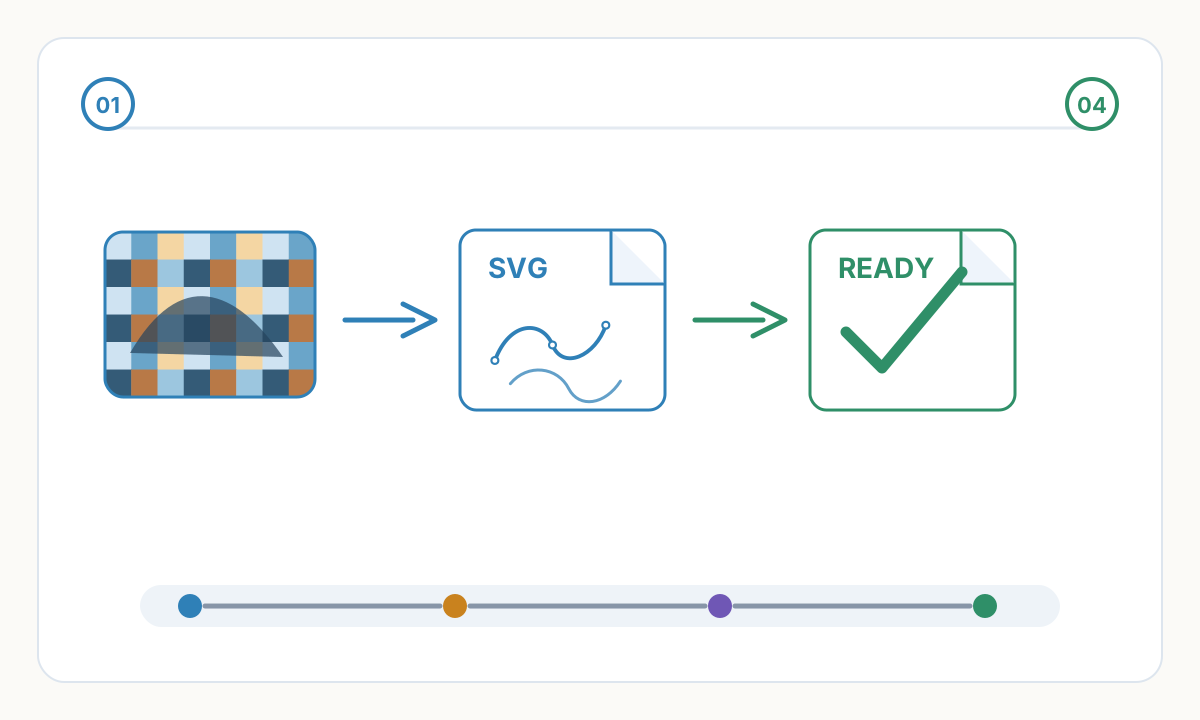
For simple high-contrast graphics: use auto-tracing tools (Adobe Illustrator Image Trace, Vector Magic, Inkscape Trace Bitmap). Upload raster, adjust settings, export SVG. Works acceptably for logos, icons, simple graphics on clean backgrounds. For complex artwork or photos: auto-tracing produces poor results—thousands of unnecessary paths, inaccurate colors, loss of detail. Professional manual vectorization recommended for quality. For photos: don't convert—keep as JPG. Photos fundamentally raster content, forcing to SVG creates huge low-quality files.
Verification checklist before production
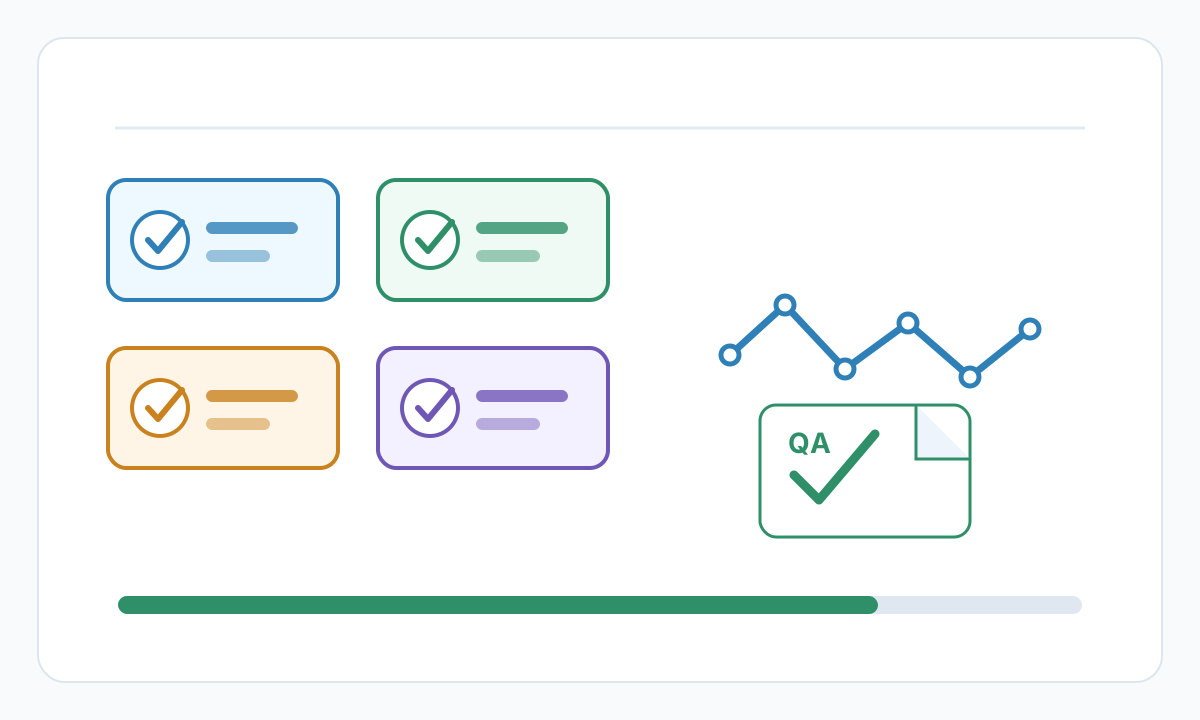
- Confirm final size, units, and orientation in the destination software
- Inspect the file for hidden, duplicate, or irrelevant geometry
- Run a small material or sew-out test before full production
- Save the approved settings, source file, and exported production file together
Prepare cleaner production files with Pixel2Lines
Use Pixel2Lines when you need artwork converted into cleaner SVG, DXF, embroidery, or machine-ready outputs before production.
Start with Pixel2Lines
Comments
Loading comments...