How to Convert a Photo to an SVG Drawing
What SVG drawings are, when you need them, and how to get clean, production-ready results for CNC, laser, vinyl, and print workflows without the node bloat that auto-trace tools produce.
What Is a Photo-to-SVG Drawing?
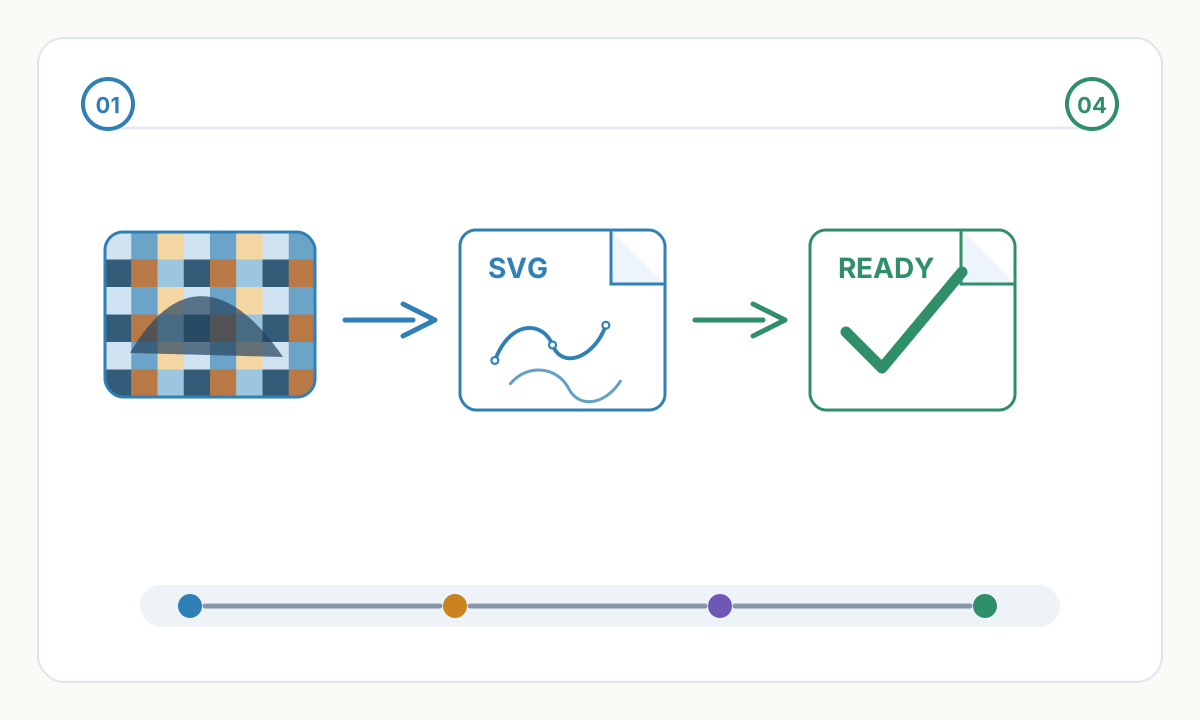
A photo-to-SVG drawing — also called vectorizing an image, raster-to-vector conversion, or image tracing — converts a raster image — pixels stored as rows of colour values — into a set of mathematical vector paths that describe the outlines and structural lines of the subject. The result is a resolution-independent SVG file where every curve and corner is defined by coordinates, not pixel grids. It scales perfectly from a business card to a billboard without loss of quality.
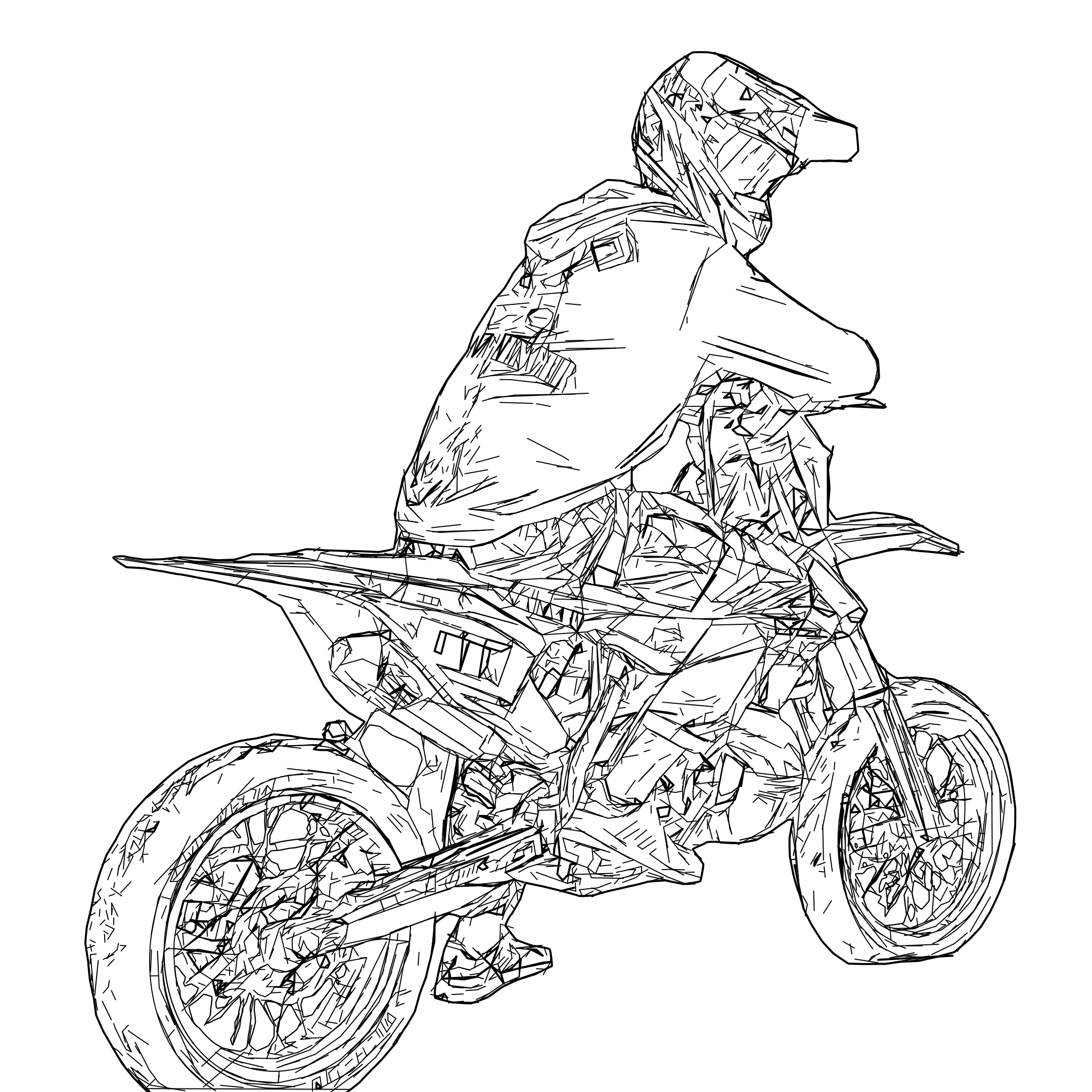
Unlike generic auto-tracing, purpose-built line detection identifies which edges carry meaning — the silhouette, major structural boundaries, and key interior details — and discards photographic noise: lighting gradients, surface texture, reflections, and compression artefacts. The output is a simplified, production-safe drawing rather than a chaotic transcript of every pixel boundary in the photo.
When You Need SVG Drawings
Raster photos cannot replace vector SVG drawing in production workflows. These applications require clean SVG geometry:
- CNC routing: CAM software (VCarve, Fusion 360, Aspire) requires closed vector paths to generate G-code for accurate pocket clearing, profile cutting, and depth control
- Laser cutting and engraving: single, non-overlapping paths ensure predictable kerf, consistent burn depth, and no double-burning from duplicate geometry
- Vinyl cutting and vehicle graphics: precise contours for colour separation and plotter accuracy — photographic softness causes ragged cuts and failed weeding
- Screen printing and textile production: simplified SVG drawing with clear colour regions and sharp boundaries for clean separation and registration
- Technical illustration: assembly manuals, patent drawings, and service documentation require simplified, scale-independent diagrams legible at any output size
Why Auto-Trace Tools Fail for Production Work
General-purpose auto-trace tools (Inkscape's trace, Illustrator's Image Trace, potrace) convert every pixel boundary into vector paths — including lighting gradients, JPEG compression blocks, soft shadows, and surface texture. The result is typically 10–50× more anchor points than necessary, with fragmented paths, micro-loops, and overlapping segments. CNC and laser software either fails to import these files or produces erratic tool behaviour. Purpose-built line detection discards photographic noise from the start and outputs only the geometry that matters for your specific production workflow.
What Makes a Production-Quality SVG Drawing
Closed paths: shapes intended for fill operations or complete cuts must form closed loops with welded endpoints. Open paths cause incomplete laser cuts, unfilled regions, and air-cutting errors in CAM software.
Minimal node count: each curve should use the fewest anchor points needed to accurately represent it. Over-complex paths cause laser speed variation and CNC micro-hesitations — reducing both quality and throughput.
No duplicate geometry: overlapping or coincident paths produce double-burning, excess tool wear, and CNC overcutting. Every contour must appear exactly once.
Feature size above process minimum: details smaller than your machine's capability cannot be reproduced. For CO₂ lasers, the minimum is typically 0.3–1mm depending on material and focus; for CNC routing, 2–5mm depending on bit diameter and material hardness.
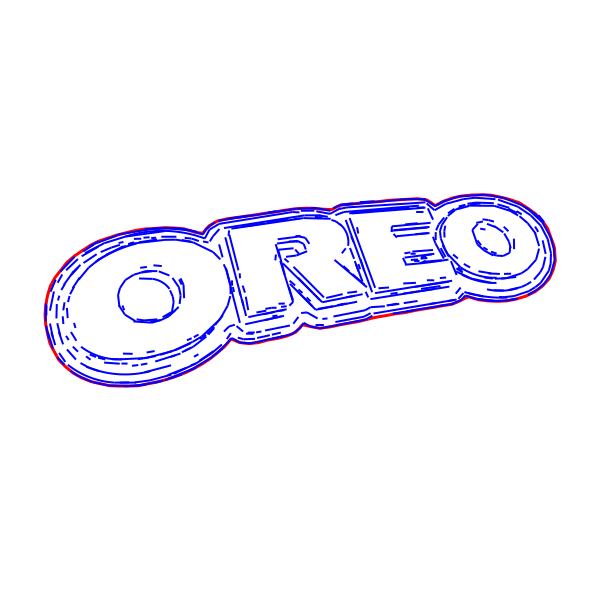
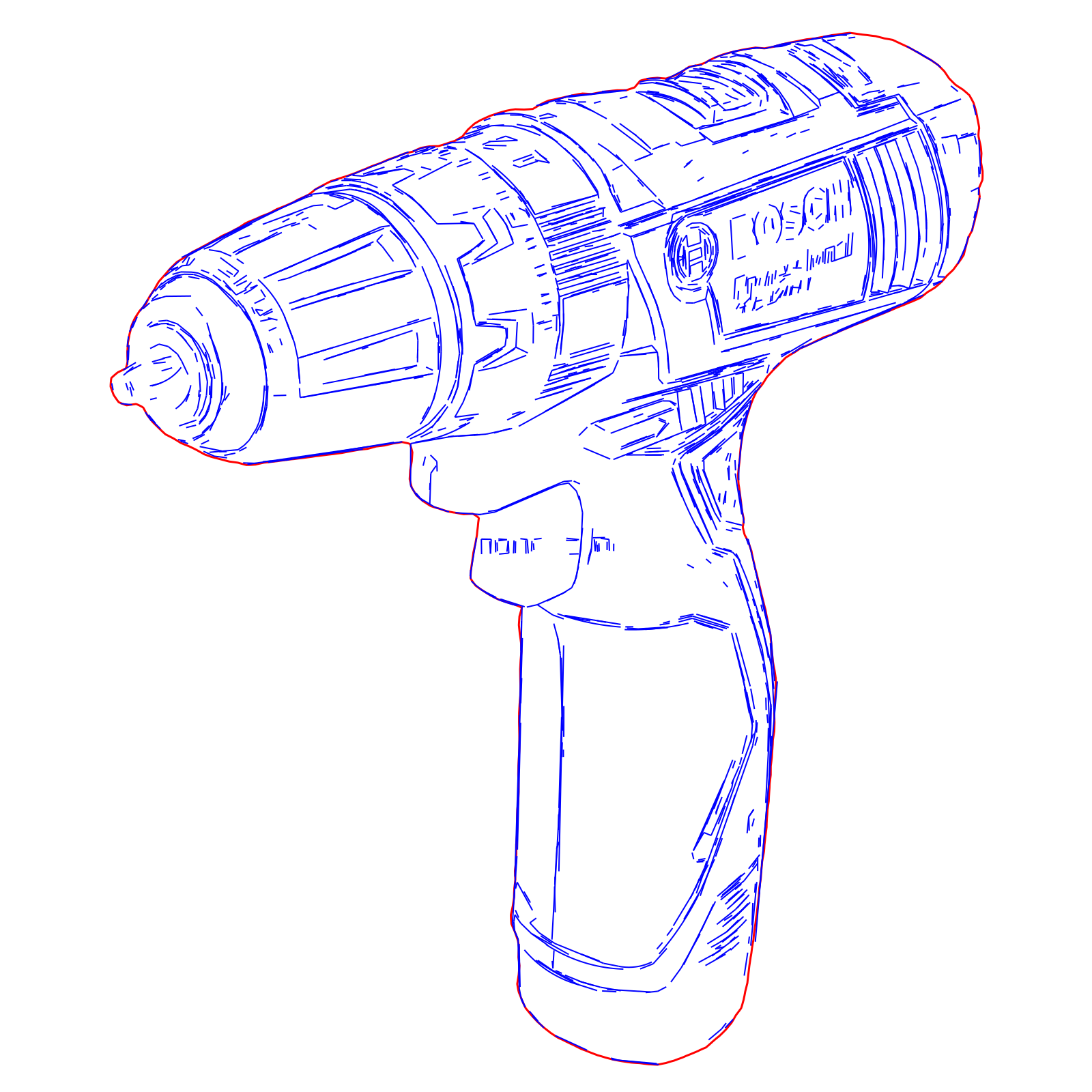
How to Convert a Photo to an SVG Drawing with Pixel2Lines
- 1
Prepare your source image
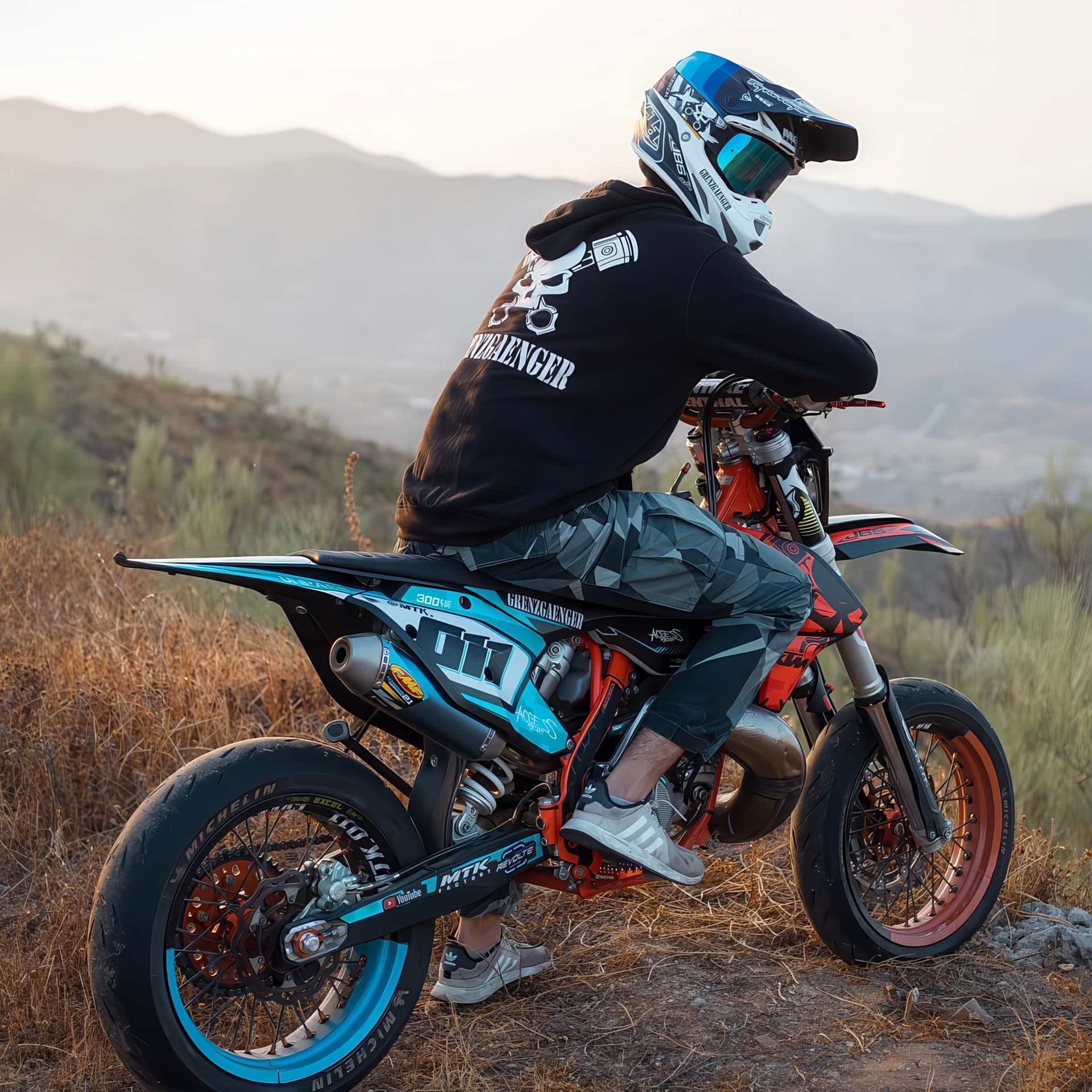
Use the highest resolution available — 2000px minimum on the shortest side, 3000–5000px preferred for subjects with fine detail or small text. Ensure sharp focus across the subject: depth-of-field blur and motion create ambiguous edges that the algorithm cannot resolve cleanly. Use even, diffused lighting to avoid harsh directional shadows. Position the subject against a plain, high-contrast background. PNG or uncompressed TIFF is preferred over JPEG — compression artefacts at edges trace as false contours.
- 2
Upload and select a preset
Open the Pixel2Lines workspace and upload your image. Select the SVG Drawing preset for CNC, vinyl, screen print, and technical illustration output. For laser-specific multi-layer SVG output, use the SVG Laser Engraving preset. Each preset applies different edge detection parameters, path optimization thresholds, and output structure tuned for its production context.
- 3
Review the preview
Examine the processed result before committing a credit. Check that primary shapes are clearly defined, detail level is appropriate for your application, and unwanted background elements are excluded. For complex subjects, preview allows you to assess quality before downloading the final file.
- 4
Download and verify in your target software
Download the SVG and open it in your laser software (LightBurn, RDWorks), CAM platform (VCarve, Fusion 360), vinyl cutter software, or design tool (Illustrator, Inkscape). Run the pre-production checks in the checklist below before sending to your machine.
Input Format and Resolution Tips
Pixel2Lines accepts JPG, PNG, BMP, TIFF, WEBP, and AVIF. PNG is strongly preferred for logos and graphics — JPEG compression creates colour-blended pixels at every edge that trace as false contours. Minimum recommended resolution: 2000px on the shortest side. For subjects with fine detail, thin strokes, or small text, 3000–5000px gives measurably better edge precision and smoother curves in the SVG output.
Pre-Production Checks Before Sending to Your Machine
- Paths are closed — open contours cause incomplete cuts, unfilled regions, and air-cutting errors
- No duplicate or overlapping paths — each contour appears exactly once; verify with a path-cleaner or visual node inspection
- Minimum feature size is above your machine's capability — measure smallest details against kerf width or bit diameter
- All objects are on correct layers with appropriate settings assigned — no stray elements on unused layers
- Scale is correct — confirm physical dimensions in your machine software's unit system before framing
- Test cut or engrave on scrap material of the same type before committing to your final workpiece
What file formats does the SVG conversion export — SVG or DXF?
Standard output is SVG (Scalable Vector Graphics), compatible with Adobe Illustrator, Inkscape, CorelDRAW, Figma, LightBurn, RDWorks, and most web applications. DXF (Drawing Exchange Format) is available on select presets for CAD and CAM platforms including AutoCAD, Fusion 360, VCarve Pro, and Aspire. SVG is recommended unless your workflow specifically requires DXF — modern laser and CNC software handles SVG reliably, and SVG preserves layer structure that DXF does not.
Can you convert a photo with a busy or complex background to vector?
Yes. The line detection pipeline identifies structural edges in the subject rather than simply thresholding all pixel boundaries. Busy backgrounds are handled better than with auto-trace tools. However, clean, high-contrast backgrounds still produce the most accurate results. For subjects with very complex or similar-colour backgrounds, removing the background in an image editor before uploading gives significantly cleaner line extraction.
Is Inkscape auto-trace or Illustrator Image Trace good enough for laser cutting or CNC?
General auto-trace tools trace every pixel boundary — surface texture, lighting variation, JPEG artefacts — producing files with 10–50× too many anchor points and fragmented, overlapping paths. Pixel2Lines uses AI-based edge detection to identify only structurally meaningful contours, then applies path optimisation calibrated for production output. The result has significantly fewer nodes, no duplicate geometry, and paths ordered for efficient machine operation.
What resolution do I need to convert a photo to SVG cleanly?
Minimum 2000px on the shortest dimension. For subjects with fine detail, thin strokes, or small text, 3000–5000px gives noticeably better edge definition. Higher resolution means more precise edge localisation at the pixel level, which directly translates to smoother Bézier curves and more accurate geometry in the SVG output.
Can I vectorize a logo or scanned drawing, not just a photo?
Yes. Logos, illustrations, scanned artwork, sketches, and linework all convert well. For logos that exist as vector art but are only available as JPEG or PNG, Pixel2Lines often produces cleaner vector geometry than a raw export because path optimisation removes unnecessary nodes. For black-and-white linework scans, use the SVG Drawing preset at maximum detail for closest fidelity to the original strokes.
Convert Your Photo to an SVG Drawing
Upload any photo or scan and get a clean, production-ready SVG drawing within a few minutes. Optimised paths, no auto-trace noise.
Convert a Photo Now
Comments
Loading comments...